Is the TV compatible with the selected method?
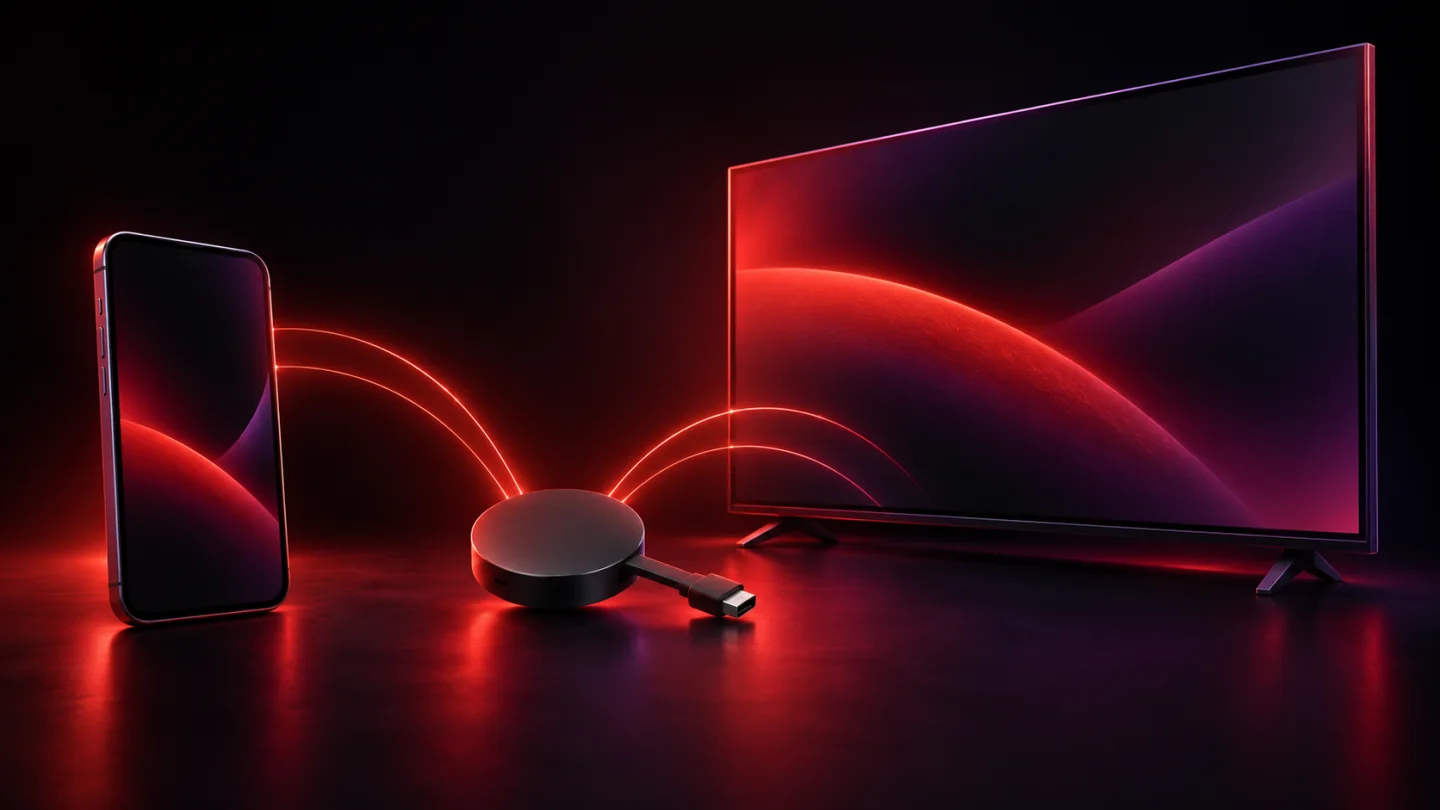
Start with the receiving technology. A TV can have internet apps without supporting Google Cast or AirPlay. Check its specifications and whether the relevant receiving feature is enabled. An external Chromecast also needs power and a working HDMI connection; turning on the television alone may not power it reliably.
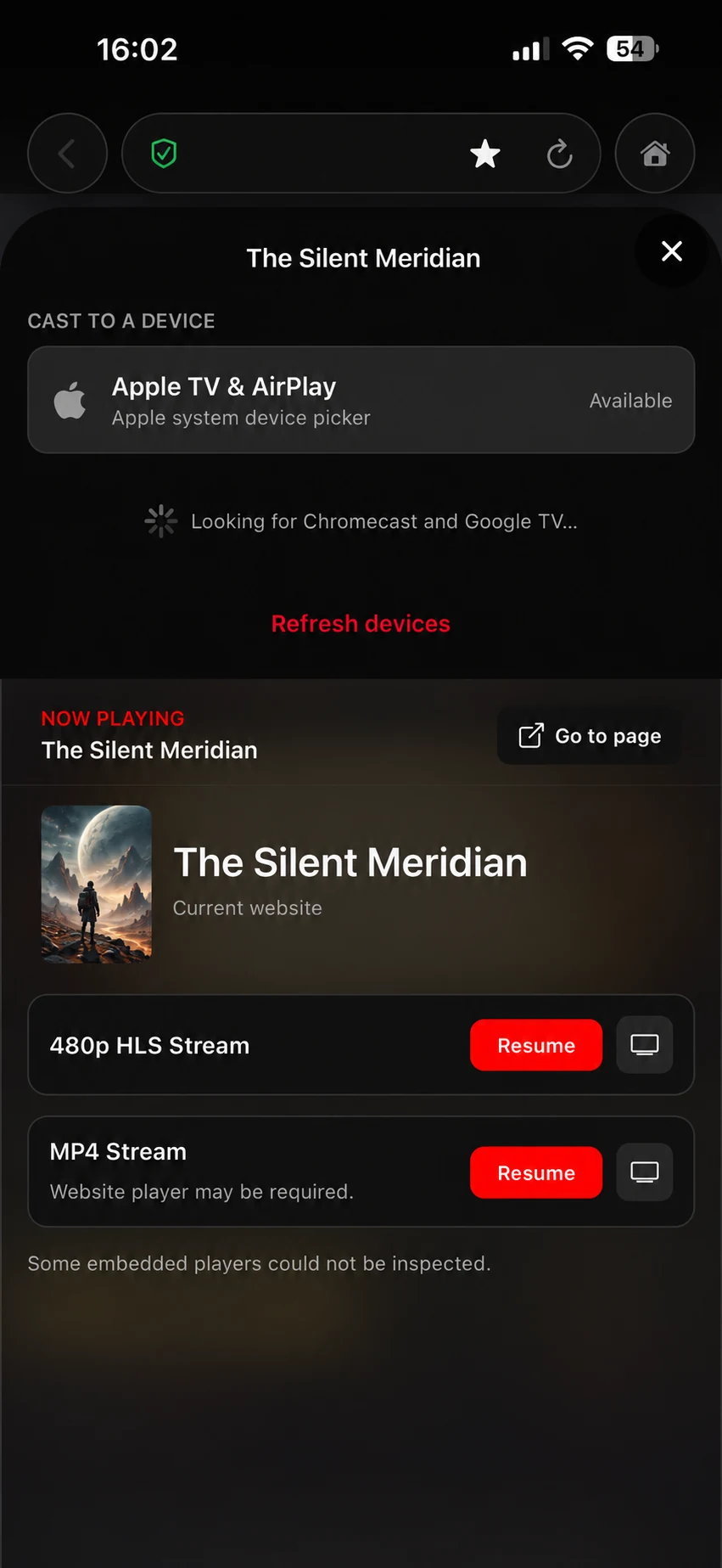
Cinemati’s Google receiver list and AirPlay entry serve different systems. Look for an Apple TV in Apple’s route picker, and a Chromecast in the Google list. The app does not enumerate AirPlay devices as if they were Google receivers. Choosing the correct route avoids troubleshooting an intentionally different list.
Is Local Network access enabled on iPhone?
On iPhone, Cinemati needs permission to discover Google Cast devices on the local network. If you declined the prompt, the app may be unable to find the receiver even though Wi-Fi works for websites. Internet connectivity and permission to discover nearby devices are separate.
Open Settings, choose Privacy & Security, then Local Network, and enable Cinemati. Return to the app and try Cast again. If Cinemati is not listed yet, initiate a casting attempt so iOS can request the relevant permission. You remain in control of whether to allow that access.
Reference: Google: Local Network permission for casting
What network checks should you try next?
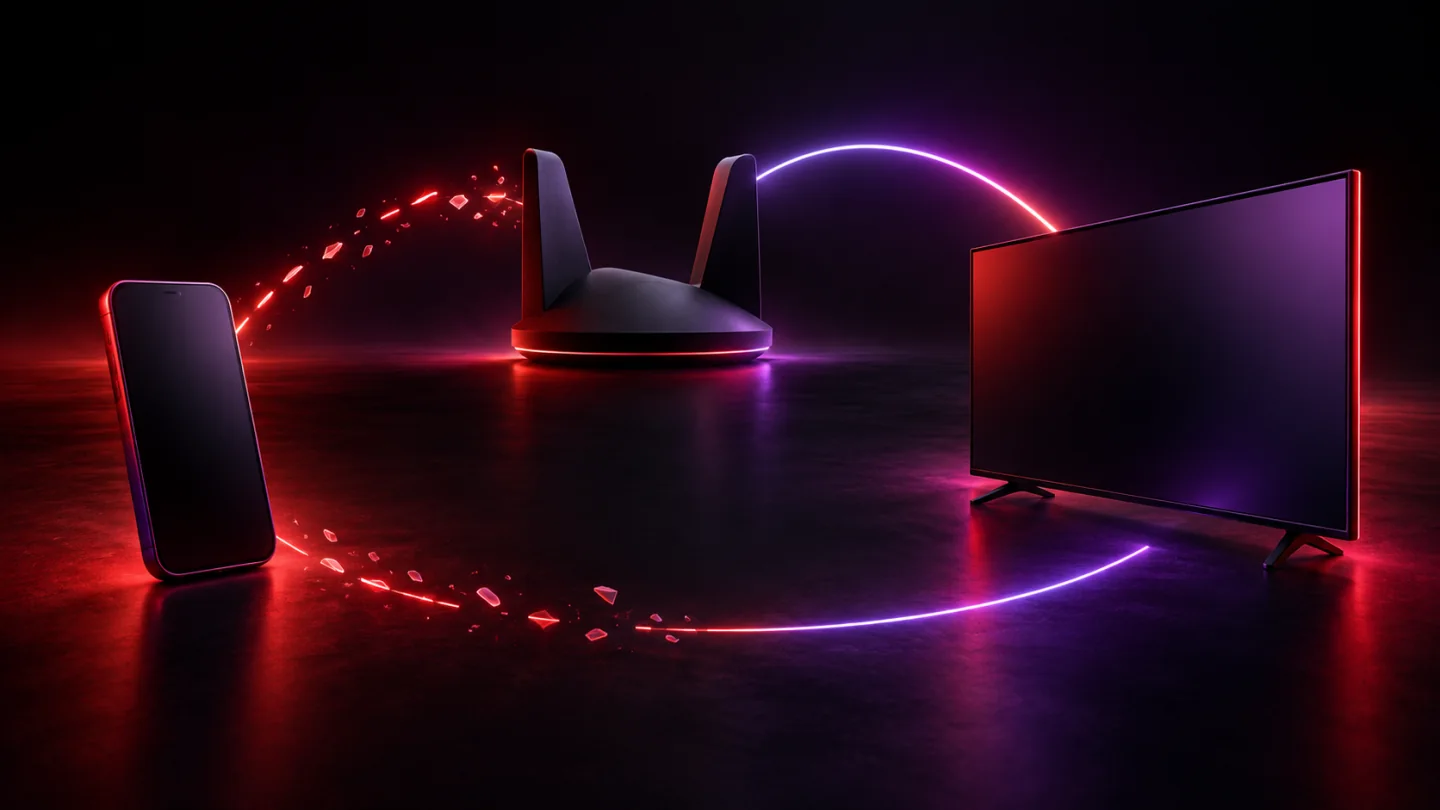
Check the network before resetting devices. A phone on cellular data or an isolated guest network may load a website perfectly while remaining unable to discover a home receiver. Sharing a Wi-Fi name is useful, but the devices also need to be allowed to communicate.
- Confirm your iPhone and receiver are connected to the intended home network.
- Check that the receiver is awake, configured and visible through its usual setup app.
- Refresh Cinemati’s device list after correcting permission or connection settings.
- If you use a VPN, review whether its routing blocks local-network communication.
- Check guest or client-isolation settings with the network owner; avoid changing a shared network without permission.
When should you refresh or restart?
Cinemati searches while the Google receiver list is open, then presents an empty state if no device is found within its search window. Use Refresh devices to start another attempt after fixing a setting. A device that was previously asleep may need a fresh discovery attempt.
If the receiver is missing from its normal setup app too, investigate the receiver or router connection. Restart the affected device using its maker’s instructions if necessary. Factory reset is a last resort because it removes setup information; it should not be your first response to one empty app list.
What if the TV appears but the video will not start?
Discovery has succeeded, so shift attention to the selected media. The receiver may be unable to access its address or decode its format. Try another compatible video you are allowed to watch and compare the result. If other videos work, the original source is the likely difference.
If every source fails, check the receiver’s connection and any displayed error. Report the receiver model, iOS version and whether discovery or playback fails when contacting support. Hardware behavior varies, and finding a device alone does not validate successful playback for every website.