
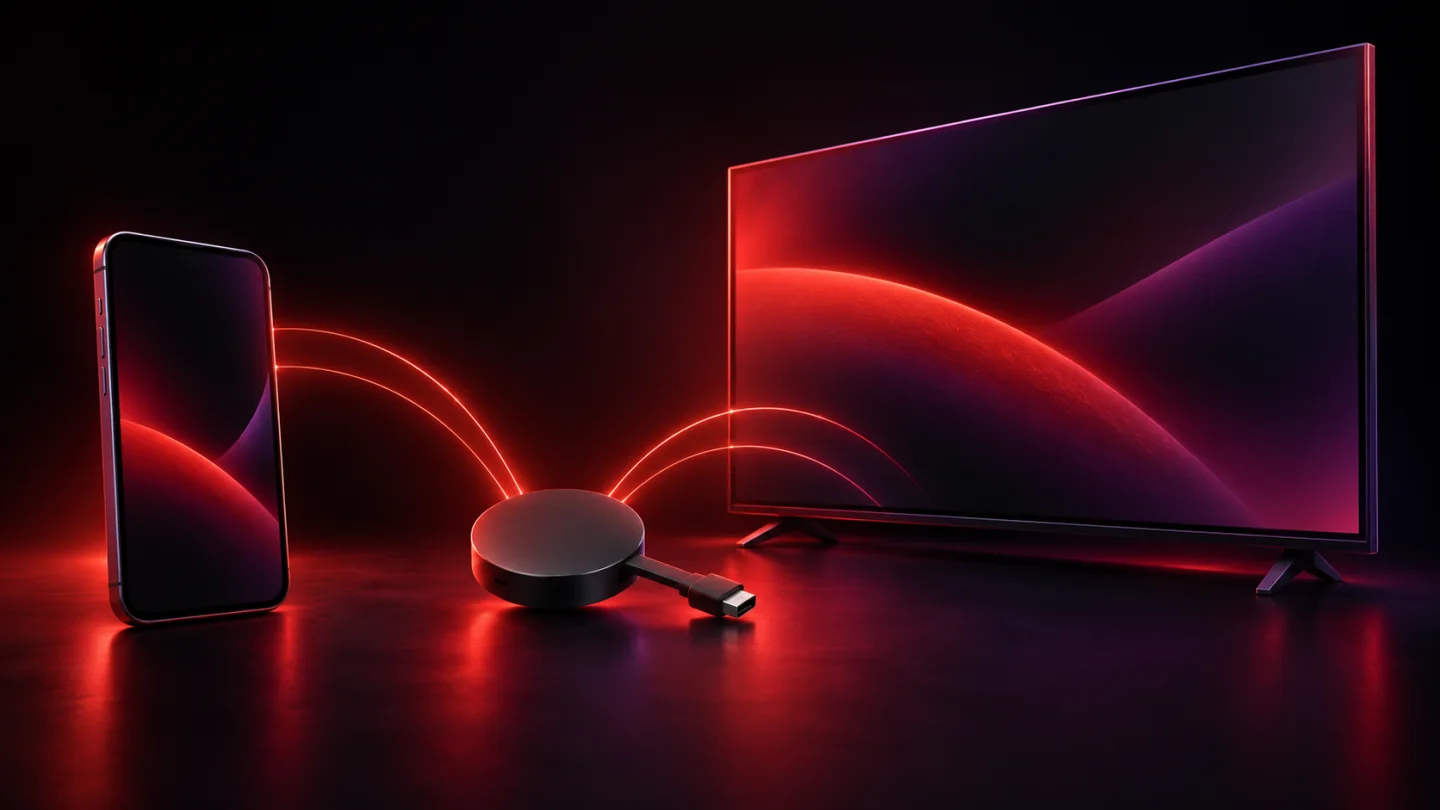
Does Chromecast work with iPhone?
Google Cast is available through compatible iPhone apps. You do not need an Android phone to use a Chromecast. However, the sending app must support Cast, and the content it sends must be playable by the receiver. Having Chrome installed on your iPhone does not give every webpage a universal casting button.
Cinemati provides a Google Cast sender for video sources it discovers while you browse. It is a browsing and playback companion, rather than a video subscription or media catalog. You bring the website and choose what to watch.
Reference: Google: cast from Google Cast-enabled apps
How do you prepare your iPhone and Chromecast?
Set up the Chromecast or your TV’s Google Cast feature using the device maker’s instructions before trying a web video. Confirm that the receiver is powered and connected. Your iPhone should use the same reachable home network, rather than cellular data or an isolated guest network.
When you first choose Cast in Cinemati, accept the Local Network prompt if you want to discover receivers. If you previously declined, open Settings, then Privacy & Security, then Local Network, and enable Cinemati. Return to the app and refresh device discovery.
Reference: Google: Local Network permission for casting
How do you send the website video?
Use Cinemati’s browser to open the actual video page. A page address identifies a website; it is not necessarily a playable video address. Cinemati looks for available sources and groups related media into choices. A website may expose its source only after you interact with its player.
- Open the page containing the video in Cinemati.
- Use the website’s player if necessary to make the intended source available.
- Select the matching video from Cinemati’s detected choices.
- Choose Cast, then tap your Chromecast or Google Cast television.
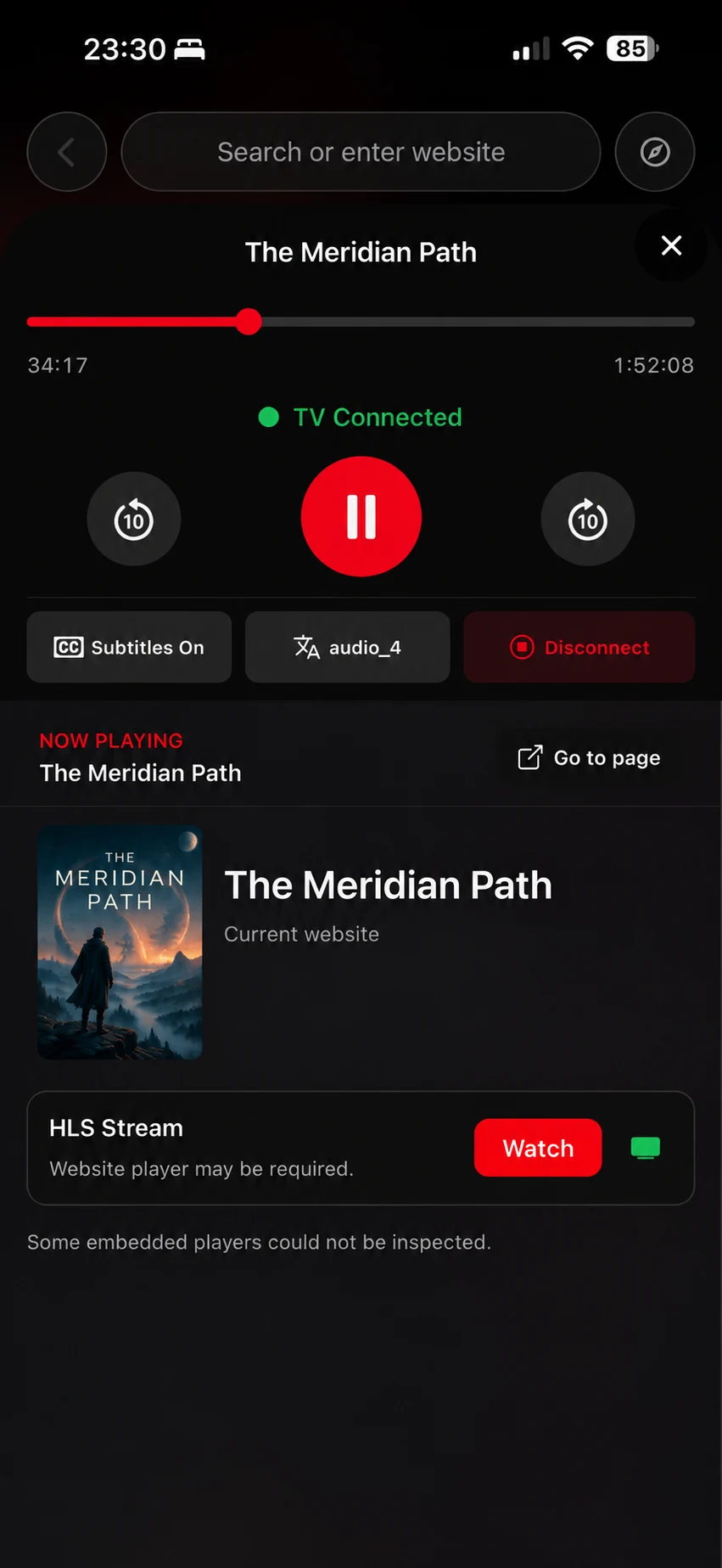
- Wait for playback confirmation and use the connected remote to control the video.
Which web videos can Chromecast play?
Compatibility depends on more than a filename. The receiver must understand the video and audio formats and be able to reach the media address. A video that works in your signed-in browser can still fail on the TV if the host expects cookies, special request headers or a short-lived access token.
Cinemati does not promise access to protected streaming services or bypass their restrictions. If a service offers an official Cast-enabled app, that app is often the appropriate choice for its protected content. For ordinary accessible web video, another detected quality or source may work when the first option fails.
How do you control or stop the cast?
After successful media loading, Cinemati shows a remote for the receiver. Use its pause and seek controls when those functions are available. Seeking may be limited for live broadcasts. Subtitle choices also depend on the tracks supplied with that particular video.
Opening another browser page does not intentionally change the cast session. To end it, use the app’s explicit disconnect or output controls. Background playback and reconnection can vary with your device and network; confirm your setup’s behavior before assuming it will continue through every interruption.