What do you need before casting?
You need an iPhone or iPad with Cinemati, a video you have permission to access, and a receiver that supports your chosen casting method. A smart TV is not automatically a Google Cast or AirPlay receiver. Check its specifications, or use a compatible streaming device connected to the TV.
Turn the TV on and select the correct HDMI input if you use an external receiver. Connect your phone and receiver to the same home network. Cinemati offers separate Google Cast and AirPlay paths; choose the one your screen actually supports.
Reference: Google: cast from Google Cast-enabled apps
How do you start a cast in Cinemati?
Start with the webpage where you normally watch the video. Cinemati observes available media while you browse, but you decide which source to send and when playback begins. If the website loads its player only after a tap, use that player first, then check the detected choices.
- Open the website in Cinemati and navigate to the video page.
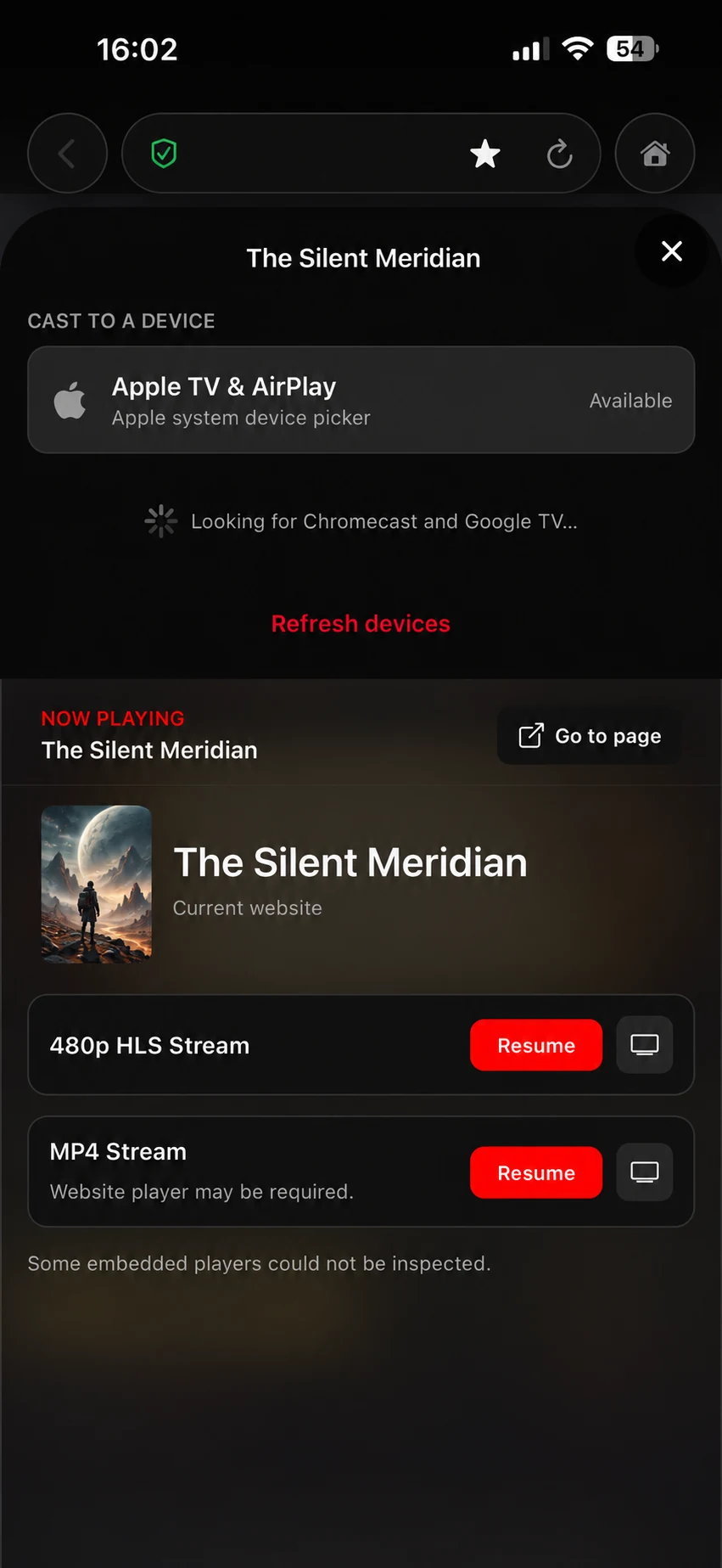
- Wait for available video sources to appear in the discovery panel.
- Select the video you want, rather than an unrelated preview or advertisement.
- Choose Cast and select a discovered Google receiver, or open the AirPlay picker.
- Confirm that the intended video has started on your television before leaving the controls.
Should you choose Chromecast or AirPlay?
For a Chromecast or a TV with Google Cast, use the Google receiver list inside Cinemati. On iPhone, allow Local Network access when asked so discovery can work. The app sends the selected media to the receiver and shows playback controls after a successful connection.
For an Apple TV or AirPlay-compatible screen, choose the AirPlay entry. Receiver selection is handled by Apple’s system picker. The two lists serve different technologies, so a device missing from one may belong in the other.
Reference: Google: Local Network permission for casting
Why might a detected video fail to play?
A source can be visible to Cinemati yet unavailable to a television. Some websites use protected players, expiring links, browser-only playback or requests that depend on your signed-in browser session. A receiver may also lack support for the video’s encoding. Detection and successful playback are separate checks.
If one source fails, return to the page and select another compatible option when available. Check whether the video still works on the website. For protected services, their official TV or casting app may be the supported route. Cinemati does not remove access restrictions or guarantee every website.
What can you do after connecting?
Use the connected playback controls to pause or seek when the video supports it. Browsing another page in Cinemati does not intentionally replace the active video. Starting another video or disconnecting remains your choice.
If the receiver disappears or playback stops, distinguish a connection problem from a source problem: a missing device calls for network checks, while one failing video calls for compatibility checks. Receiver behavior varies, so test your own setup before relying on long background sessions.