Why can Chromecast continue without the phone screen?
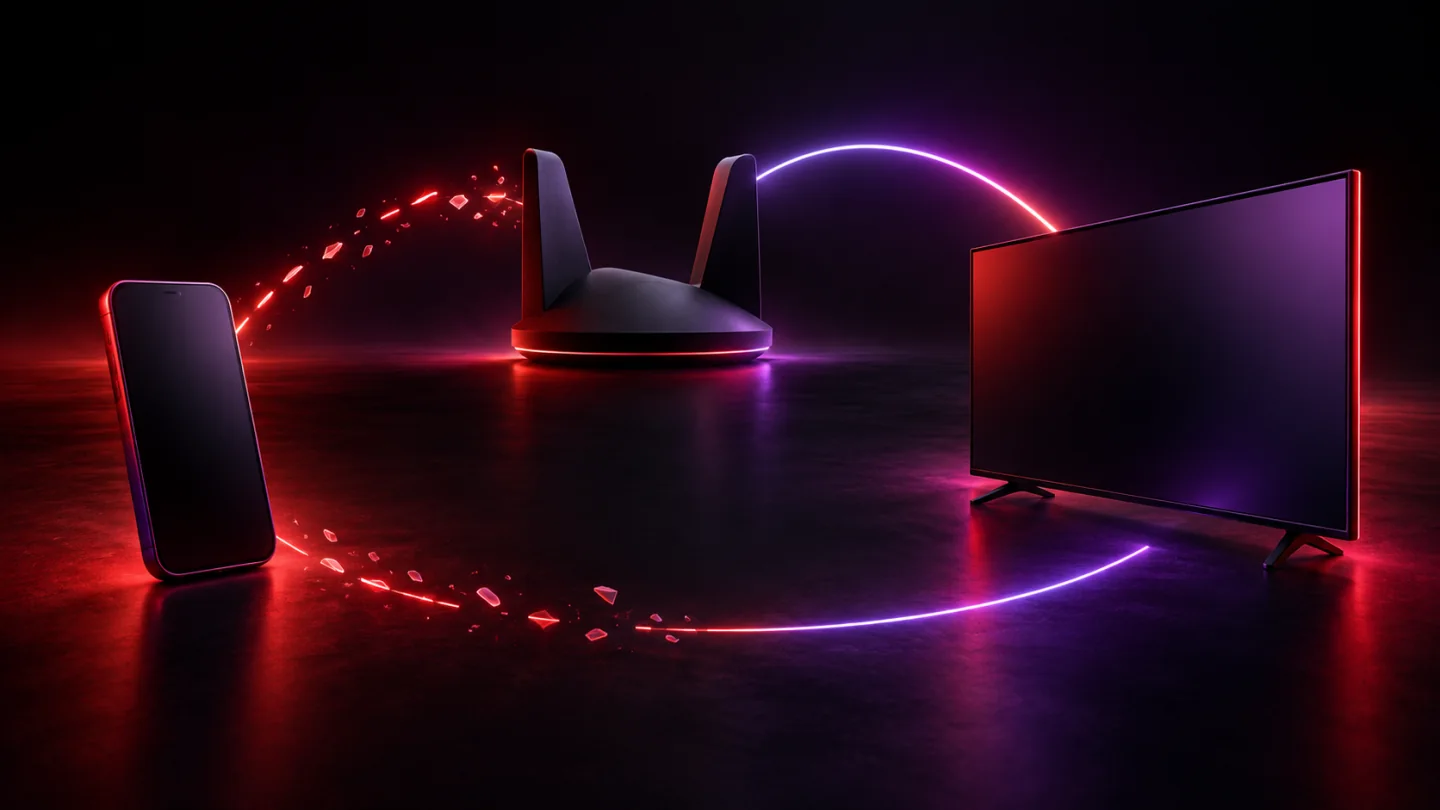
In a compatible Google Cast media session, the receiver loads the selected stream. Your phone is the sender and controller; it is not simply showing its display on the television. Closing the browser page or switching to a different app therefore need not replace the receiver’s current video.
That distinction depends on media casting actually succeeding. Confirm playback on the TV before switching away. A connection that is still being established, an unsupported source or a receiver losing internet access can interrupt the session regardless of whether your iPhone screen is on.
Reference: Google Cast: sender and receiver playback
How do you control the cast from the lock screen?
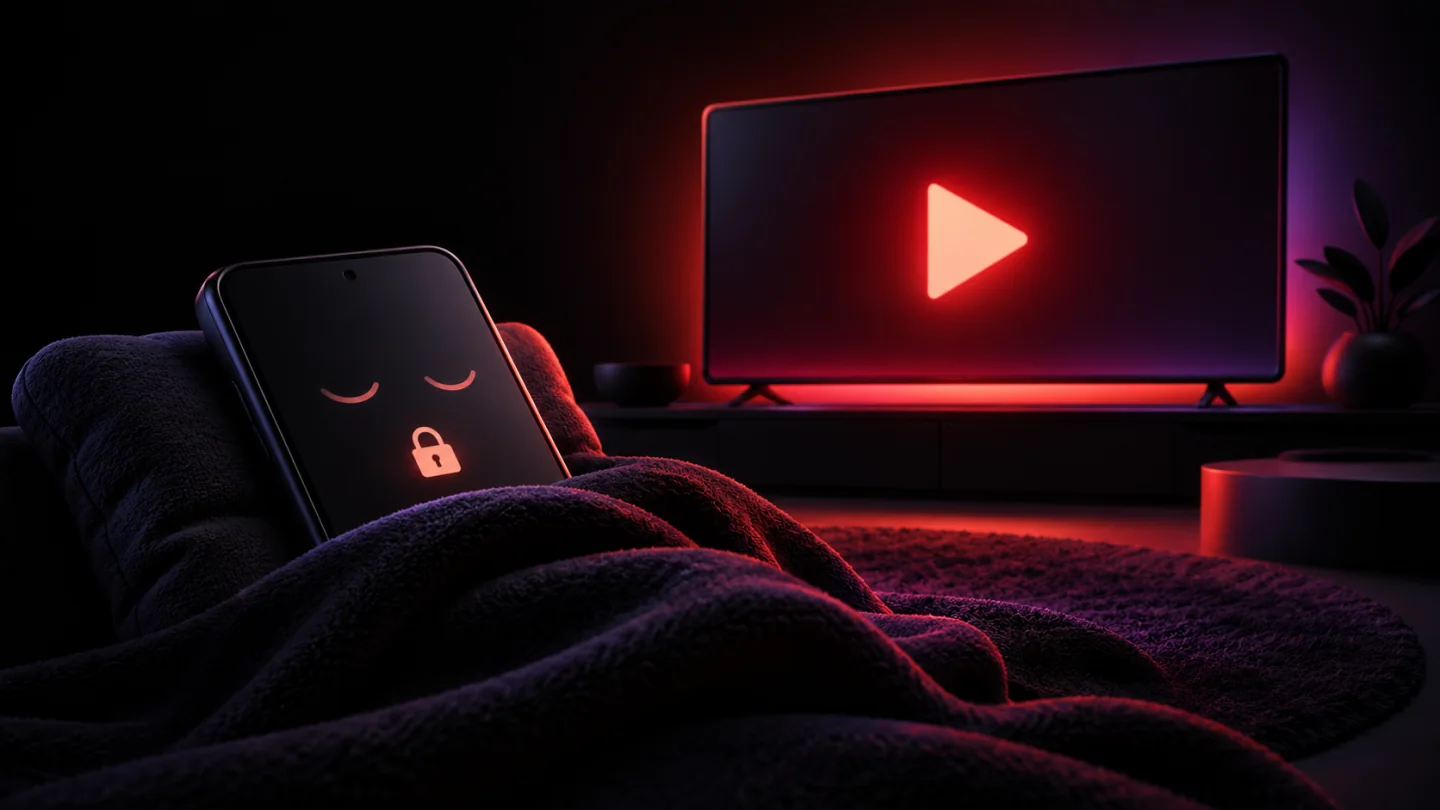
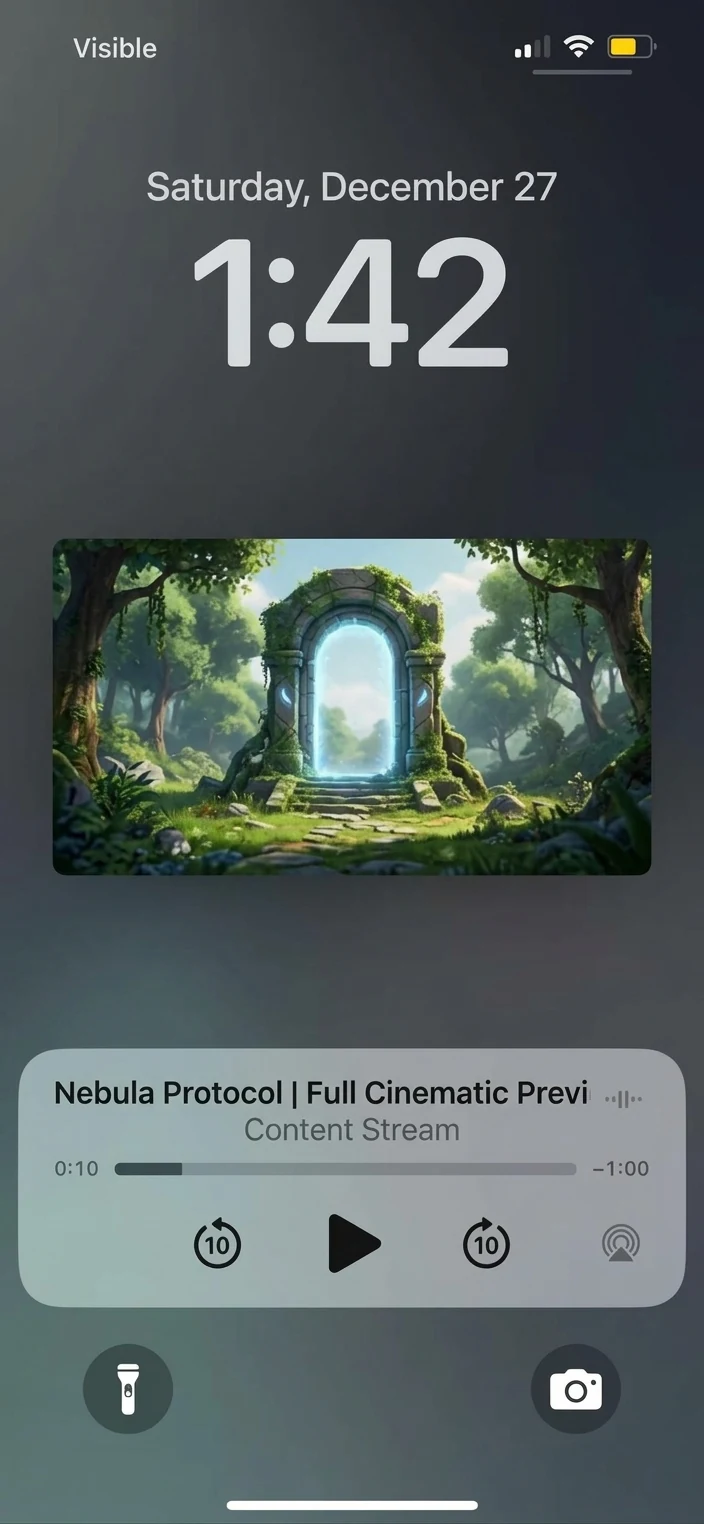
Once a video is playing on your Chromecast or Google TV, Cinemati shows a media card on the iPhone lock screen. It displays the video’s title, artwork and position, so you can check and steer playback without unlocking your phone or reopening the app.
Each button acts on the television, not on your phone: the TV pauses, resumes or jumps, and the card updates to match. Live broadcasts cannot be seeked, so the timeline and skip buttons are disabled for them. The AirPlay icon in the card’s corner belongs to iOS and chooses where phone audio plays; it does not move the cast to another TV.
- Wake your iPhone with the side button or by raising it. The Cinemati card appears on the lock screen.
- Tap the Play or Pause button in the middle to resume or pause the video on your TV.
- Tap the 10-second buttons to jump back or forward ten seconds.
- Drag along the timeline to move to another point in the video.
- Unlock and open Cinemati when you want to change subtitles, switch receivers or disconnect.
What does Cinemati do when you switch apps?
Cinemati keeps Google casting separate from phone playback and browser navigation. When you leave the app it saves the current session, and when you return it reconnects to a receiver that is still playing. It refreshes the receiver’s status instead of reloading the video as a new viewing action.
A short reconnecting state can appear when you come back. Give it a moment to confirm the active receiver before tapping play or cast again. If the connection has genuinely ended, the app reports it rather than starting playback on its own.
How can you check your own setup?
Run a short test with an accessible video before relying on a locked phone for a longer session. This checks the combination that matters: your phone, the selected source, your receiver and your network.
- Start a compatible cast and confirm the TV is playing the intended video.
- Lock your iPhone and wake it again; the Cinemati card should appear.
- Pause and resume from the card and watch the TV respond.
- Return to Cinemati and let the remote synchronize with the receiver.
- Disconnect explicitly from the app when you finish.
Do AirPlay and screen mirroring behave the same way?
AirPlay video uses Apple’s playback path rather than Cinemati’s Google Cast connection, and iOS supplies its own lock-screen controls for it. Background behavior can depend on the media and player, so a working Chromecast test does not prove that the same source behaves identically with AirPlay.
Screen mirroring is another distinct case: it reproduces your visible phone display, so locking the phone or opening another app changes what the TV shows. If locked-screen playback is essential, test the method you actually use.
What if controls disappear or playback stops?
Return to Cinemati and inspect the connection state. If the television is still playing, allow the app to reconnect before starting another session. If the receiver stopped, check its network and whether the source is still accessible. A video address can expire even though discovery and the original connection succeeded.
The lock-screen card appears only after the video has loaded on the receiver, and it disappears when you disconnect or the session ends. Force-quitting Cinemati also removes it, even if the TV keeps playing. If the TV is still playing, opening the app again can reconnect the remote and bring the card back.